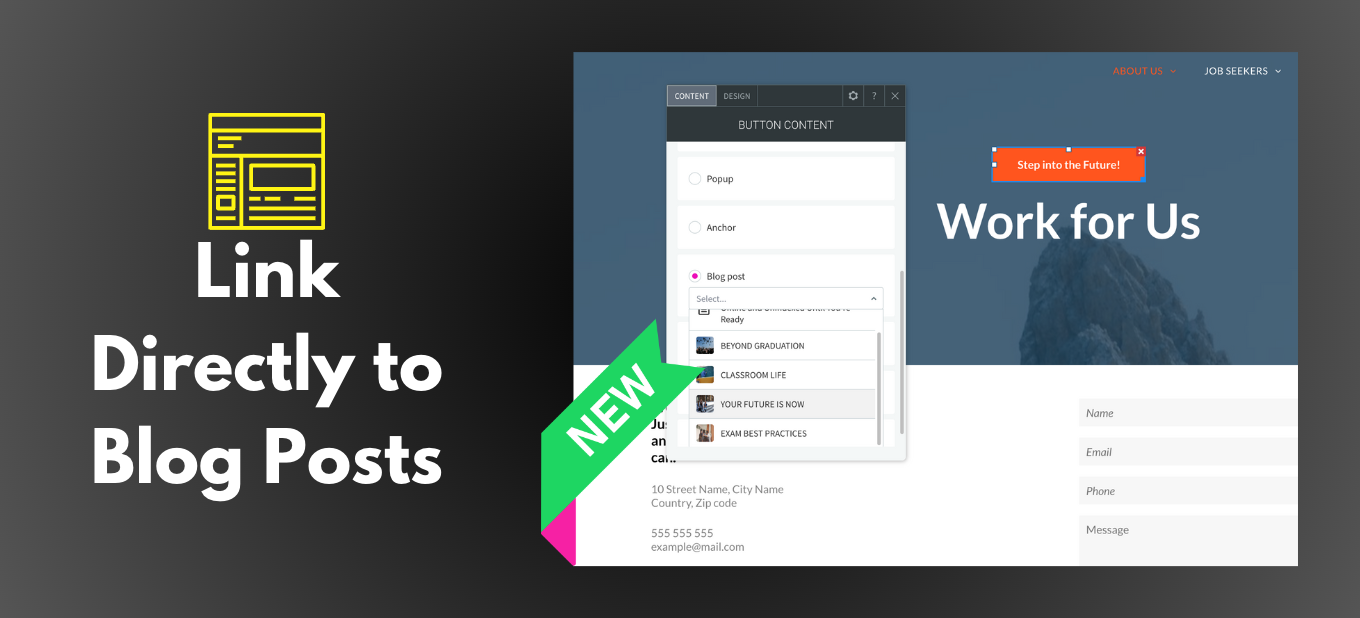

Link Directly to Blog Posts
Paul Williamson • June 23, 2023
Quickly and simply link to specific Blog posts.
Connect quickly and efficiently to blog posts on your sites by linking to them directly from any widget with a link picker. This includes buttons, images, icons, shapes, and image sliders.
So handy and easy to add
Have clients who want to add links to site blog posts from various locations on their sites? You can do this quickly and easily by directly adding links to specific blog posts via the link picker.
Adding the links is easy. Open the Content Editor of any element that can be linked. This includes:
So handy and easy to add
Have clients who want to add links to site blog posts from various locations on their sites? You can do this quickly and easily by directly adding links to specific blog posts via the link picker.
Adding the links is easy. Open the Content Editor of any element that can be linked. This includes:
- Buttons
- Images
- Image sliders
- Galleries
- Icons
- Shapes
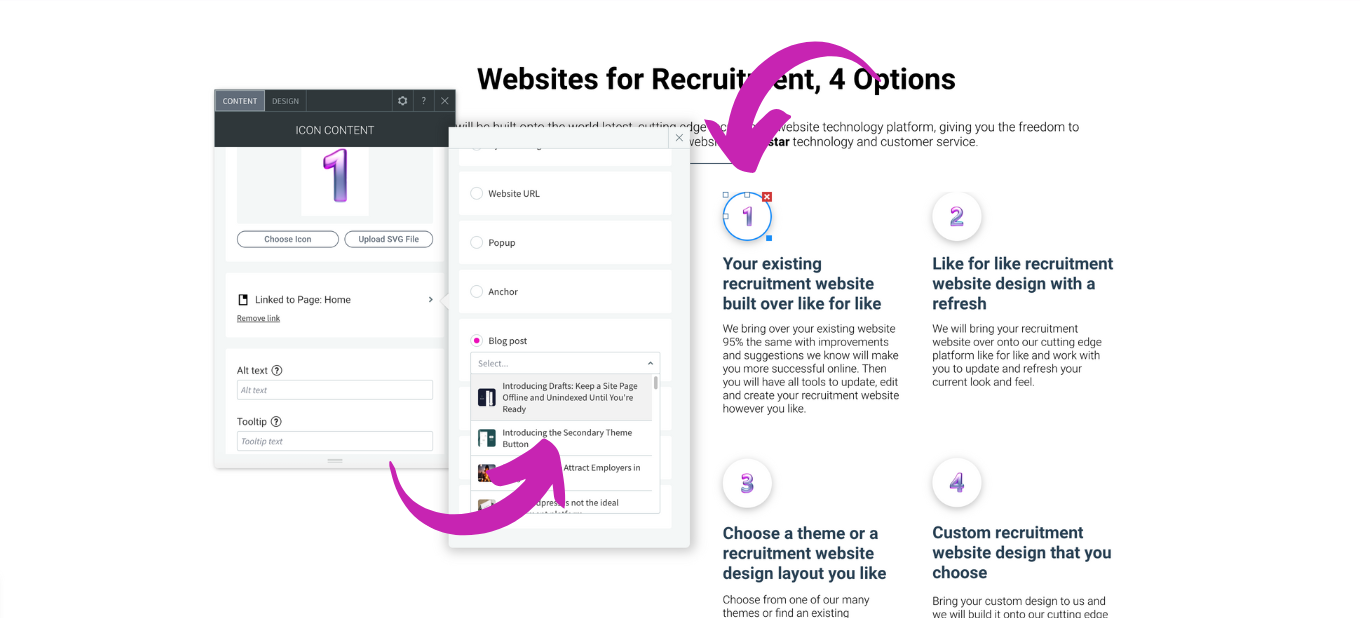
Scroll down until you see Blog post . This will only appear if you have published blogs on the site. Click on the Select field, and enter a word in the search field. Any blog post with that word in the title or author will appear and can be connected.
For example, you can link to a specific blog post from a Homepage section or use the picker to link one blog post to another, driving users to read through more articles on related topics.

By Nicole Clarke
•
October 28, 2025
How to Track Your LinkedIn Leads (and Finally See What’s Working) Most recruitment agencies post regularly on LinkedIn, but few actually know what’s working. You might get great engagement, but how do you know if those likes and clicks are turning into new clients or candidate enquiries? If you’re not tracking your leads, you’re flying blind. The good news is that it’s incredibly easy to fix. You just need a simple setup using UTM tracking and Google Analytics (GA4) . Here’s how to do it properly so you can see exactly which posts, people, and campaigns are driving real results. Step 1: Add UTM Links to Every LinkedIn Post Whenever you share a link on LinkedIn, whether it’s to a job, a blog, other content or a “book a demo” page etc you should add a little bit of tracking code at the end of your URL. This code is called a UTM , and it tells you exactly where your traffic came from once people land on your website. Example: https://www.xyzrecruitment.com/book-demo?utm_source=linkedin&utm_medium=social&utm_campaign=demo_launch&utm_content=post1 Here’s what each tag means: utm_source=linkedin → tells you the traffic came from LinkedIn utm_medium=social → identifies it as an organic social post utm_campaign=demo_launch → labels your specific campaign utm_content=post1 → helps you see which post or person shared it You can use Google’s free Campaign URL Builder to generate these in seconds. Step 2: Use Tagged Links in Every Post and Profile Once you’ve created your UTM-tagged links, use them everywhere you share links from LinkedIn: Company updates Recruiter and consultant posts LinkedIn articles or newsletters Comments and DMs If multiple people in your team are posting, give each person their own UTM content tag (for example: utm_content=sarah_post or utm_content=liam_article ) so you can easily see who’s driving the most traffic or conversions. Step 3: Track the Results in Google Analytics 4 With your UTM links live, it’s time to see what’s working. In Google Analytics (GA4) , go to: Reports → Acquisition → Traffic Acquisition Filter by: Source / Medium = linkedin / social Now you’ll see: How many visitors came from LinkedIn Which pages they viewed Whether they filled out a form, booked a demo, or applied for a role That’s how you finally connect your LinkedIn activity to actual business outcomes. Step 4: If You Run Paid Ads — Connect LinkedIn to GA4 If you’re also running LinkedIn Ads , connect your LinkedIn Campaign Manager to GA4 . This gives you the complete picture, not just clicks and impressions, but which ads and audiences are driving conversions. Step 5: Create a Simple Dashboard Once you’re tracking everything, pull it together in a Google Looker Studio (Data Studio) dashboard. You’ll get a clear visual of: Traffic from LinkedIn (organic + paid) Conversions by campaign Which recruiters generate the most leads Your overall ROI from LinkedIn It’s simple, visual, and finally gives you proof of what’s working. Why This Matters for Recruitment Agencies Without UTM tracking, your LinkedIn traffic shows up in Google Analytics as “direct” or “referral”, which tells you nothing. With proper tracking, you’ll know: Which campaigns or posts bring in new client leads Which recruiters or consultants drive the most engagement What content types actually convert It’s not about guessing, it’s about growing with real data. Quick Recap Step 1: Add UTM links to every LinkedIn post — Tracks traffic accurately Step 2: Use consistent naming — Keeps your data clean Step 3: Check GA4 reports — See conversions clearly Step 4: Connect LinkedIn Ads — Measure full ROI Step 5: Build a dashboard — See what’s working at a glance Final Tip Consistency is key! One untagged link can throw off your data. Once you start tracking properly, you’ll quickly see which content drives leads and where to focus your marketing energy next. If you’d like help setting up UTM links or building a simple LinkedIn-to-GA4 dashboard, contact the team at www.shazamme.com we can show you exactly how to do it right!